Automatic Content Typing

Automatic Content Typing

Automatic Content Typing uses AI to determine the correct content type for an asset as soon as it enters Aprimo, without requiring users to make that classification manually. When a file is uploaded, the AI analyzes the asset, including its visual content, any embedded text, and file type, and resolves it to the appropriate content type based on the options you have configured.

This feature is part of the AI Elite package.

Why It Matters

Content type is foundational in Aprimo. It controls which metadata fields are presented, which workflow rules fire, which renditions are generated, and how content is reviewed. When content type is set incorrectly or left unset, downstream operations break down: wrong fields get populated, the wrong review routes are triggered, and discoverability suffers.

At scale, with high-volume ingestion, manual content typing becomes a bottleneck and a source of inconsistency. Automatic Content Typing removes that dependency, ensuring every asset is correctly classified from the moment it lands in the DAM.

  • Assets are immediately routed through the correct workflows without manual intervention
  • Metadata fields appropriate to the content type are populated accurately from the outset
  • Reduces human error in asset classification at scale
  • Unlocks downstream automation, the right renditions, reviews, and enrichment happen automatically
  • Supports content re-use by making assets correctly categorized and therefore more discoverable

Where It Fits in the Content Lifecycle

Automatic Content Typing fires at the Upload & Enrich stage of the content lifecycle where agents and tools work in the background to classify, describe, and enrich assets as they enter the system. It pairs naturally with Enhanced Captioning and Predictive Metadata, and is a recommended starting point in the Crawl phase of an AI Elite deployment.

How to Configure It

Prerequisites

  • AI Elite licence
  • The EnableAIContentTypeResolution feature flag must be enabled - contact Aprimo Support or your implementation team to activate this

Step 1: Configure Content Types for AI Prediction

Navigate to Administration > Content Administration > Content types configuration. Select the content type you want the AI to be able to predict.
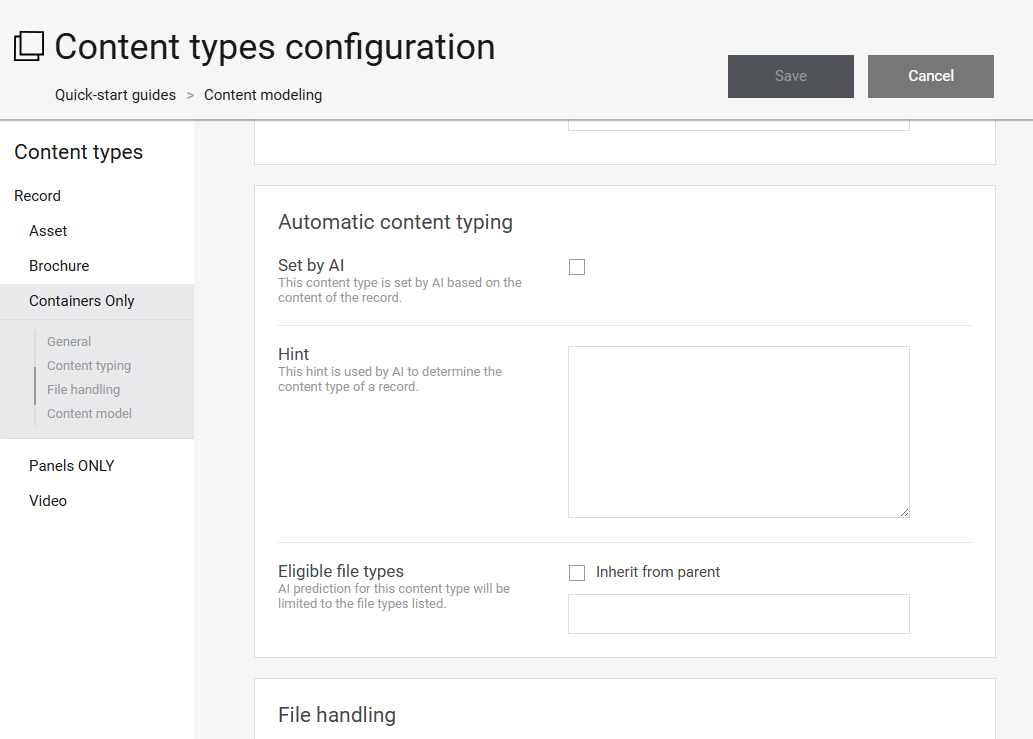
You will see an Automatic content typing section with the following settings:

Set by AI

Enable this checkbox to include the content type as a predictable option. Out-of-the-box (OOB) content types are included by default and do not require this to be set.

Hint

A short description of the content type's purpose, passed to the AI to improve prediction accuracy. For example, for a content type called "Product Shot" you might write: "A studio image of a single product against a plain background." The more precise the hint, the better the classification result.

Eligible File Types

A comma-separated list of file extensions this content type applies to (e.g. PNG, JPG, BMP). This prevents the AI from predicting a content type for incompatible file types. Select Inherit from parent to use the file types set on the parent content type.

Note: OOB content types are included in AI prediction by default. This configuration is only required for custom content types.

Step 2: Create a Rule to Trigger Content Type Resolution

Create a rule in the Rule Builder that fires the Resolve content type action. A standard rule for most asset types:

  • If: the Record / File has changed or has been created
  • Then: Resolve content type

Video Assets — Additional Step

For video assets, the AI uses transcripts to inform its classification. Transcripts must be generated before the Resolve content type action runs. Configure the rule for video assets as follows:

  1. If: the Record / File has changed or has been created
  2. And: the Record / File is Video
  3. And: the preview of the latest version of the master file is created/changed
  4. Then: Extract Transcripts using Aprimo AI (set Execution time to Delayed)
  5. And: Resolve content type